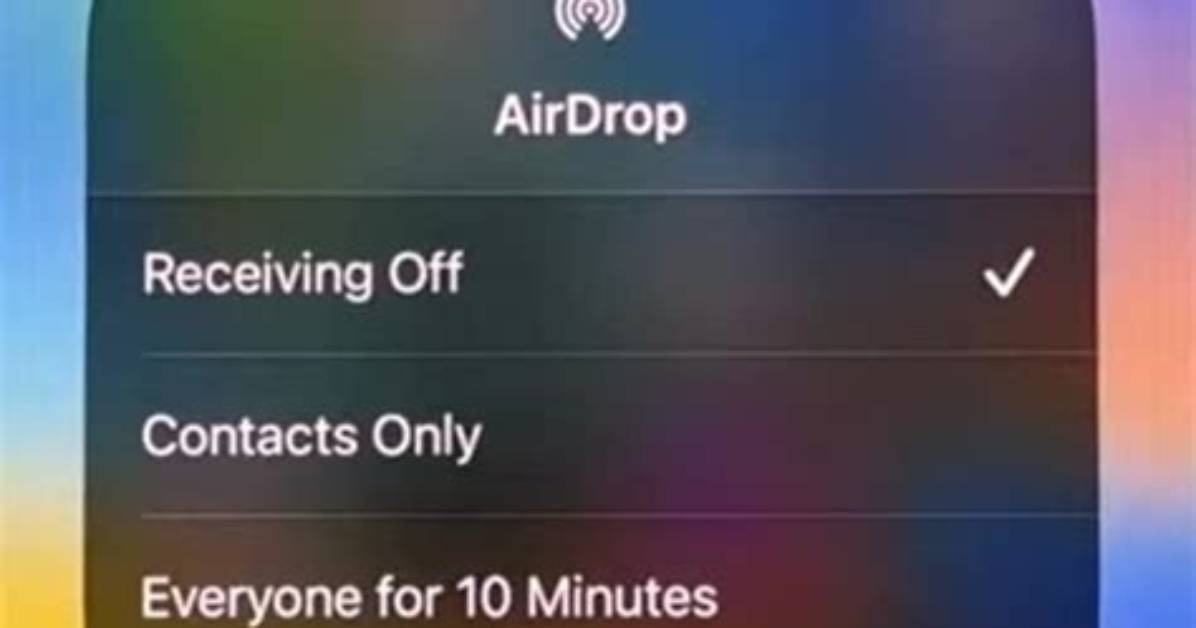
Of course, because the AirDrop feature relies on Bluetooth connection between devices, the easiest way to stop receiving AirDrop notifications is to turn off your device's Bluetooth. However, if you want to keep your Bluetooth on, here's how to turn off just the AirDrop feature:
- iPhone or iPad — From your device's Home Screen, navigate to the Settings app. Once there, click on the General tab. You'll see a dedicated AirDrop button. Click that, and you'll be directed to three different options: Receiving Off, Contacts Only, or Everyone for 10 Minutes. To turn AirDrop off, choose Receiving Off.
- MacBook — On your MacBook, navigate to the Finder app. On the left hand side of the Finder window, under Favorites, click AirDrop. Now, at the bottom of the window, click on the text that says, "Allow me to be discovered by." You'll have three options: Everyone, Contacts Only, or No One. To turn AirDrop off, choose No One.

