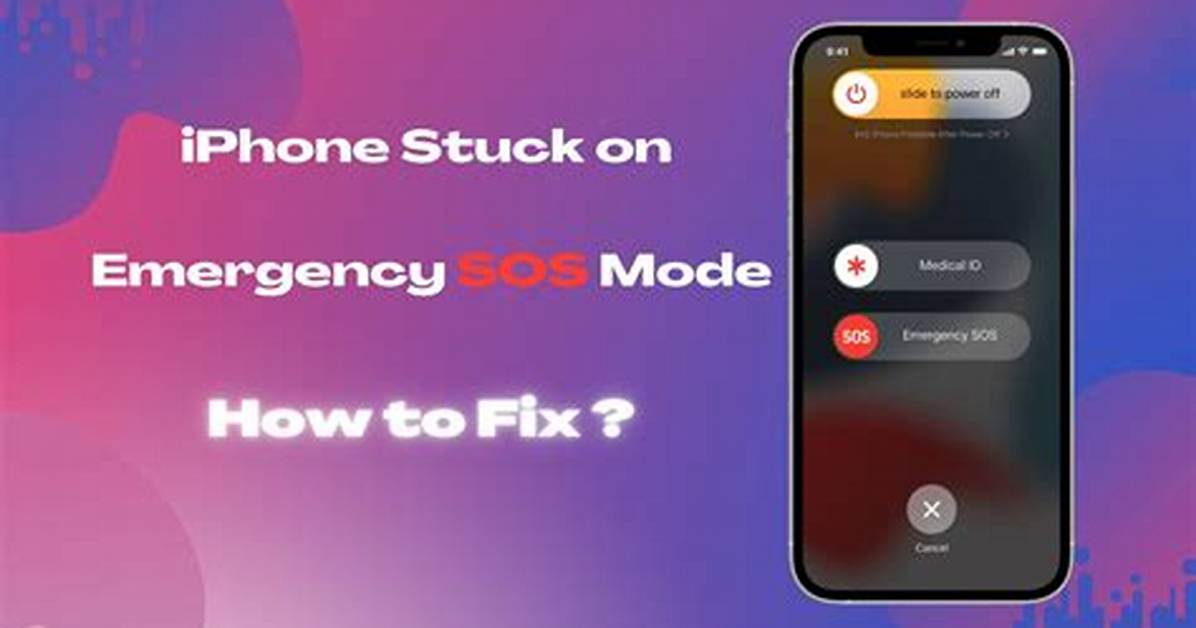
Although we don't recommend turning off Emergency SOS on your iPhone — it helps you quickly contact emergency services and your emergency contact — we understand the glitch can be incredibly frustrating. Therefore, we're here to provide step-by-step instructions on how to disable the feature.
First, head to the home screen and click on Settings. From there, scroll down until you see Emergency SOS — click on it, and you'll see various sliders to look through. But the one we're looking for is at the top: Call with Hold (or Call with Side Button). Tap the slider to turn it off, and you're all done!
If you turn off Call with Hold, you can still use the Emergency SOS slider to make a call.
There's another problem that many iPhone users are experiencing, in which a message that reads "SOS only" displays at the top of their screen without the carrier's name. This typically means there's a problem with your cellular network — as a result, iPhone users can't make or receive text messages, phone calls, or use data.
How can this be fixed? There are several ways:
- Restart your iPhone
- Try changing your location to a place that has a good network signal
- Remove and re-insert the iPhone's physical SIM card
- Turn off Cellular Data and then turn it back on
- Restart network settings
- Update your iPhone and carrier settings

