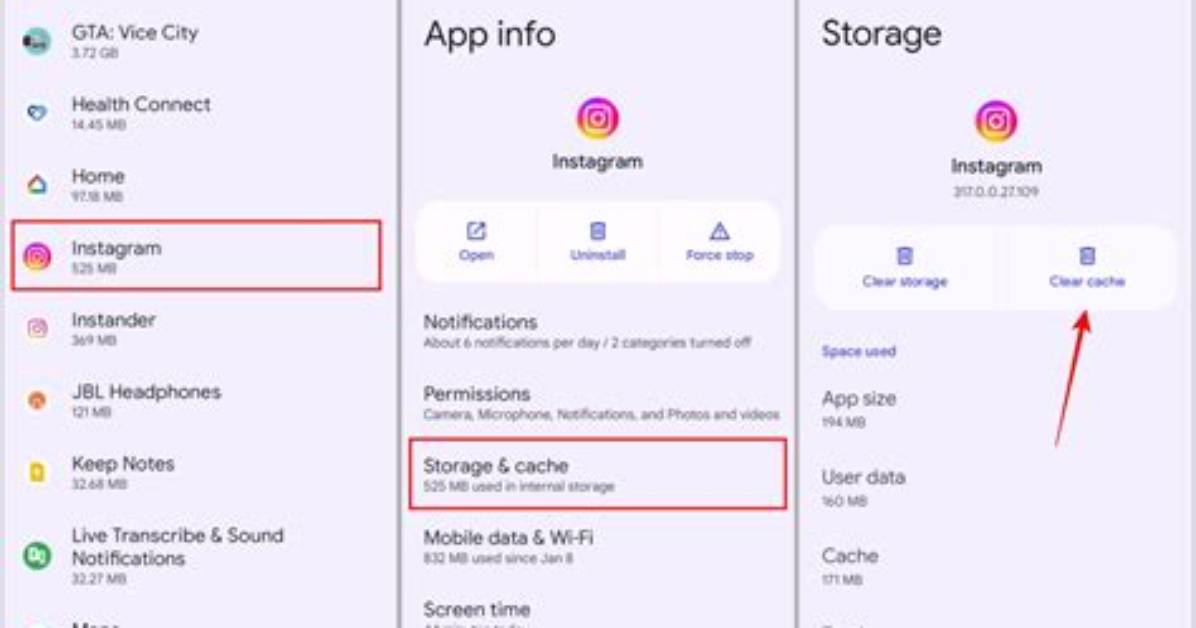
If you’re experiencing slow loading times or your Instagram app is taking up too much storage space on your Android device, clearing the Instagram cache can help resolve these issues. Follow this step-by-step guide to clear the Instagram cache on your Android device:
- Open the Settings app on your Android device.
- Scroll down and find the Apps or Applications option and tap on it.
- In the list of installed apps, locate and tap on Instagram.
- Tap on either Storage or Storage & cache. The exact wording may vary depending on your device.
- Finally, tap on Clear cache to remove the temporary data stored by Instagram on your device.
Clearing the cache will not delete any of your Instagram data, such as your account or photos. It will only remove temporary files that may be causing performance issues or taking up unnecessary storage space.
Pro Tip: If you’re still experiencing issues after clearing the cache, you can try restarting your Android device or reinstalling the Instagram app.
| Benefits of Clearing Instagram Cache on Android | Steps to Clear Instagram Cache on Android |
|---|---|
|
|

